Create your organization
Sign up, choose a plan, and open an organization your team can join.

Every SalesEQ account belongs to an organization. Creating one makes you its admin, which puts you in charge of billing, members, and what new people see when they join.
If someone at your company already has a SalesEQ organization, join theirs instead. Meetings, groups, and sharing all live inside a single organization, so being in the same one is what lets your team see each other's meetings.
This takes about ten minutes.
Before you start
- A work email address you can receive mail at
- A payment method, or a conversation with our team if your company pays by invoice
Sign up
Go to app.saleseq.ai/sign-up and enter your name, work email, and a password. You can also continue with Google.
Use your work email. Your domain determines which coworkers can find and join your organization later.
Landing on Meetings instead of the sign-up form means you are already signed in to an existing account. Sign out first if you meant to use a different one.
Verify your email
SalesEQ sends a verification link to the address you signed up with. Open the message and select Verify Email.
The link signs you in and takes you to organization setup. If the message has not arrived after a minute, select Resend verification email.
Name your organization
Choose Create a new organization.
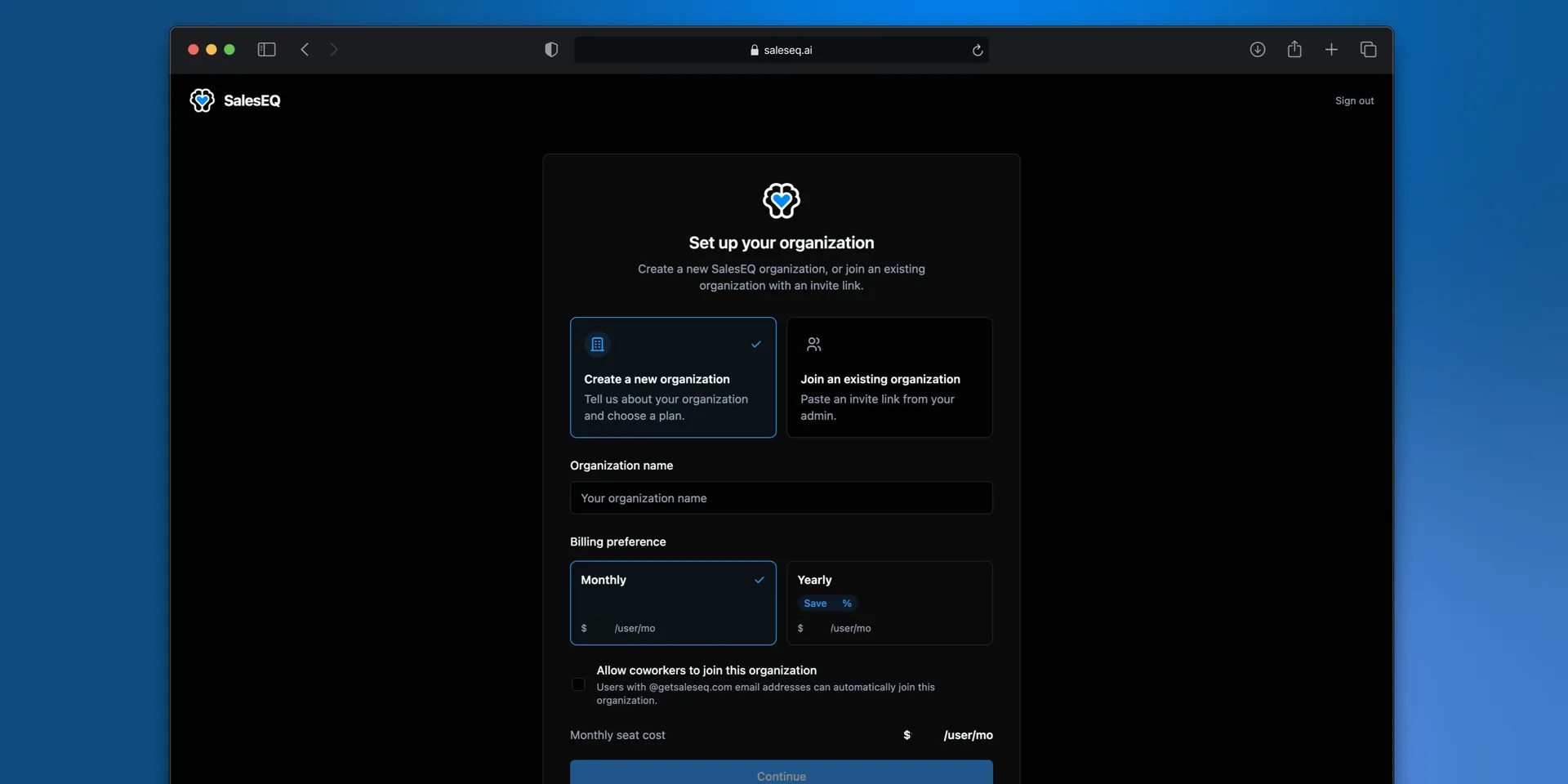
Enter an organization name. Your team sees this name in the app, and you can change it later.
Choose monthly or yearly billing. Yearly bills once and costs less per seat.
Decide whether coworkers can join on their own. With this turned on, anyone who signs up with an email address on your domain lands in your organization without needing an invite. Leave it off if you want to add every member yourself.
Complete checkout
Continue to checkout and pay for your first seat. Your organization activates as soon as the payment succeeds.
Paying by invoice
Larger teams can be billed by invoice instead of card. That is set up by hand, so contact us before you sign up and we will arrange it.
Finish onboarding
SalesEQ walks you through a short setup flow before dropping you into the web app. A new organization starts with steps for connecting a calendar, connecting a CRM, downloading the desktop app, and connecting an AI assistant.
Required steps have to be finished before you reach the web app. Optional steps have a Skip for now link.
Connecting a calendar and connecting an AI assistant are the two worth doing now rather than later. Calendar covers what a connected calendar changes about your meetings, and AI assistants covers asking questions about them from Claude or ChatGPT.
Verify it worked
You land on Meetings with your organization name in the welcome message. The table is empty until you record something, which is expected.
New organizations start with default sharing set to Restricted. New meetings stay private to their owner until someone shares them or an auto-share rule grants access. An admin can change this under Organization Default Sharing.
Invite your team
An organization with one person in it does not do much. Inviting your team is the step that makes shared meetings and groups worth anything.
Open Organization members and select Invite. You can send invites to specific addresses or copy a link anyone can use, and you choose the role people land with either way.
Members and roles covers both routes in full.
Next
- Record your first meeting gets a real meeting into SalesEQ.
- Members and roles covers inviting your team and what each role can do.
- Onboarding flow controls which steps new joiners have to finish.