Members and roles
Invite people to your organization and decide what they can do.
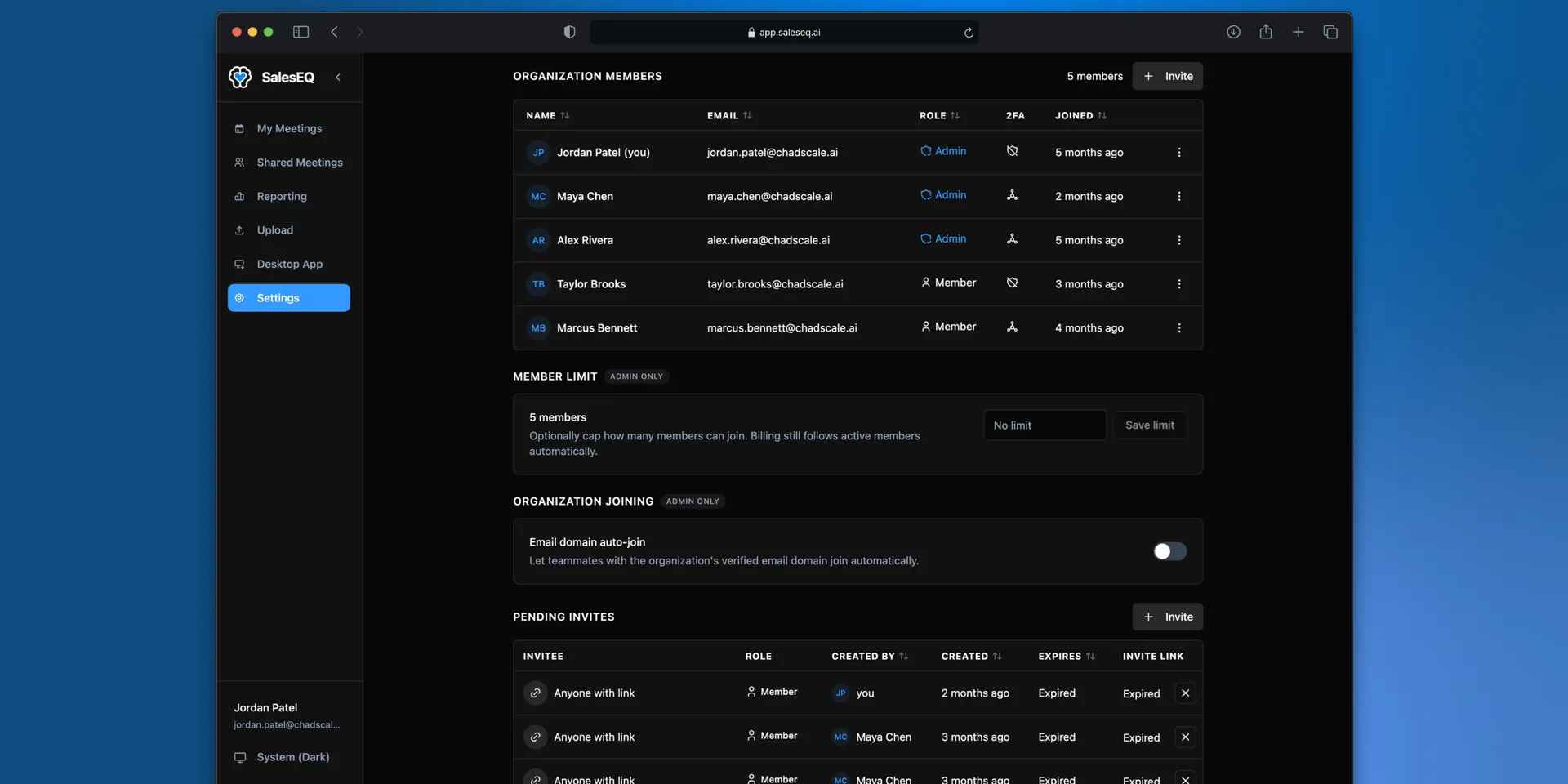
Everyone in an organization is either an Admin or a Member.
| Role | What they can do |
|---|---|
| Member | Record, upload, import, and share their own meetings. Transfer ownership of their own meetings. See what has been shared with them. |
| Admin | Everything a member can do, plus manage members, invites, groups, organization sharing defaults, and billing. Admins can also manage an organization meeting when they have its link. |
Keep at least two admins. One admin is a single point of failure the first time they are on holiday.
What only an admin can set
Several settings apply to everyone in the organization, and a member cannot override them:
- Require 2FA for password sign-ins.
- Block recording for a meeting, or for every meeting matching a rule.
- Require or block Live AI, or leave the choice to each member.
- Meeting deletion policy, which decides whether owners can delete their own meetings.
- Organization jargon, the shared vocabulary used when transcribing the organization's meetings.
Any member can share a quick action or a checklist with the organization. Those are additions to a catalog rather than policy, so they need no admin.
Invite someone
Two routes end in the same place. Send an invite to a specific address when you know who you are adding. Copy a link when you are dropping it into Slack and letting people take it themselves.
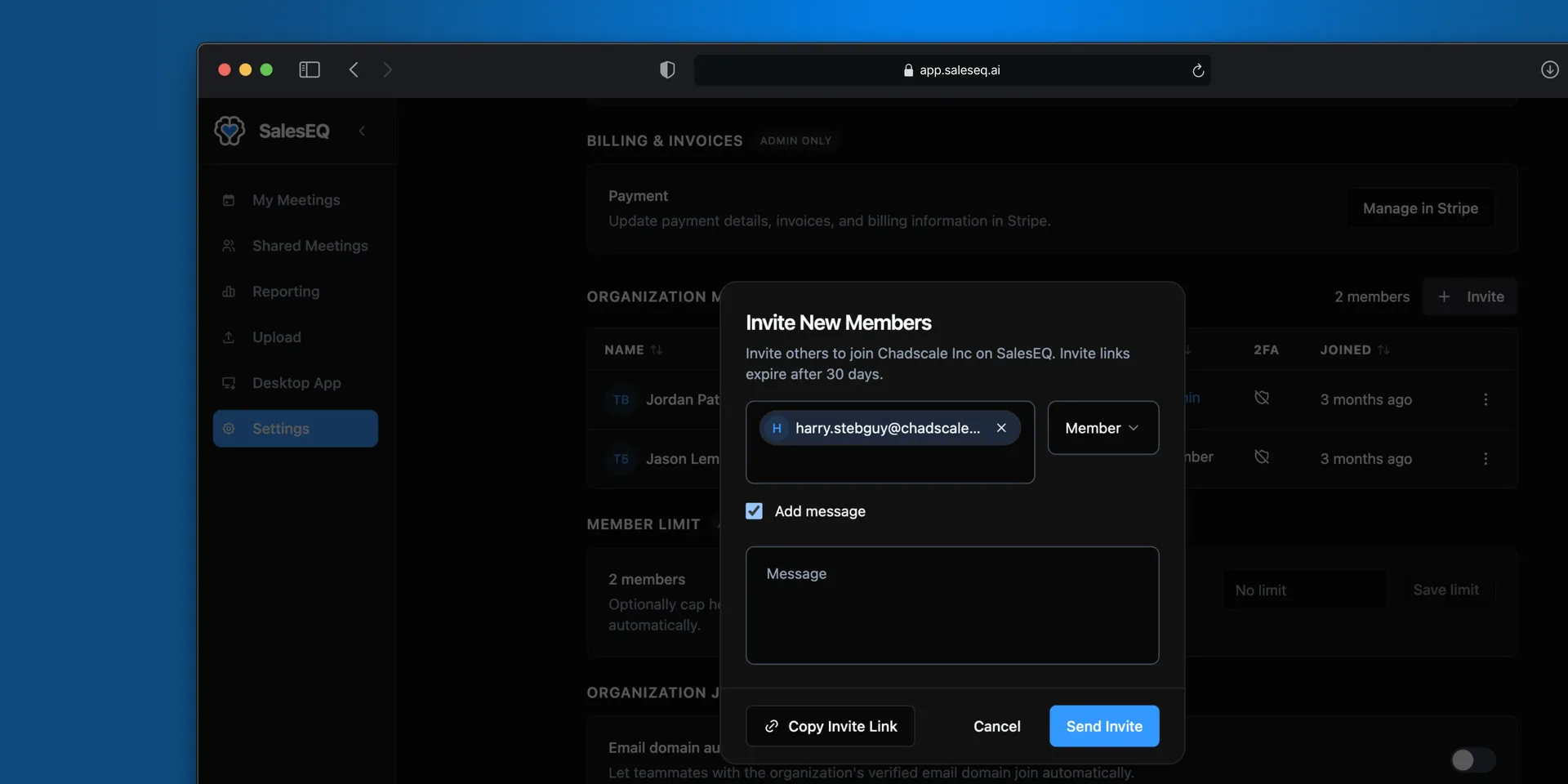
Start an invite
Select Invite. Choose the role the person gets when they accept.
Send it, or copy a link
Enter one or more work email addresses and select Send Invite. Turn on Add message to include a note in the email.
Select Copy Invite Link instead to get a link that anyone can use to join in that role. Treat it like a password, because it does not check who opens it.
Invite links expire after 30 days. Expired invites stay listed under Pending invites until you clear them.
Verify it worked
The person appears in your members list once they accept. Until then the invite is pending, and you can re-send or withdraw it.
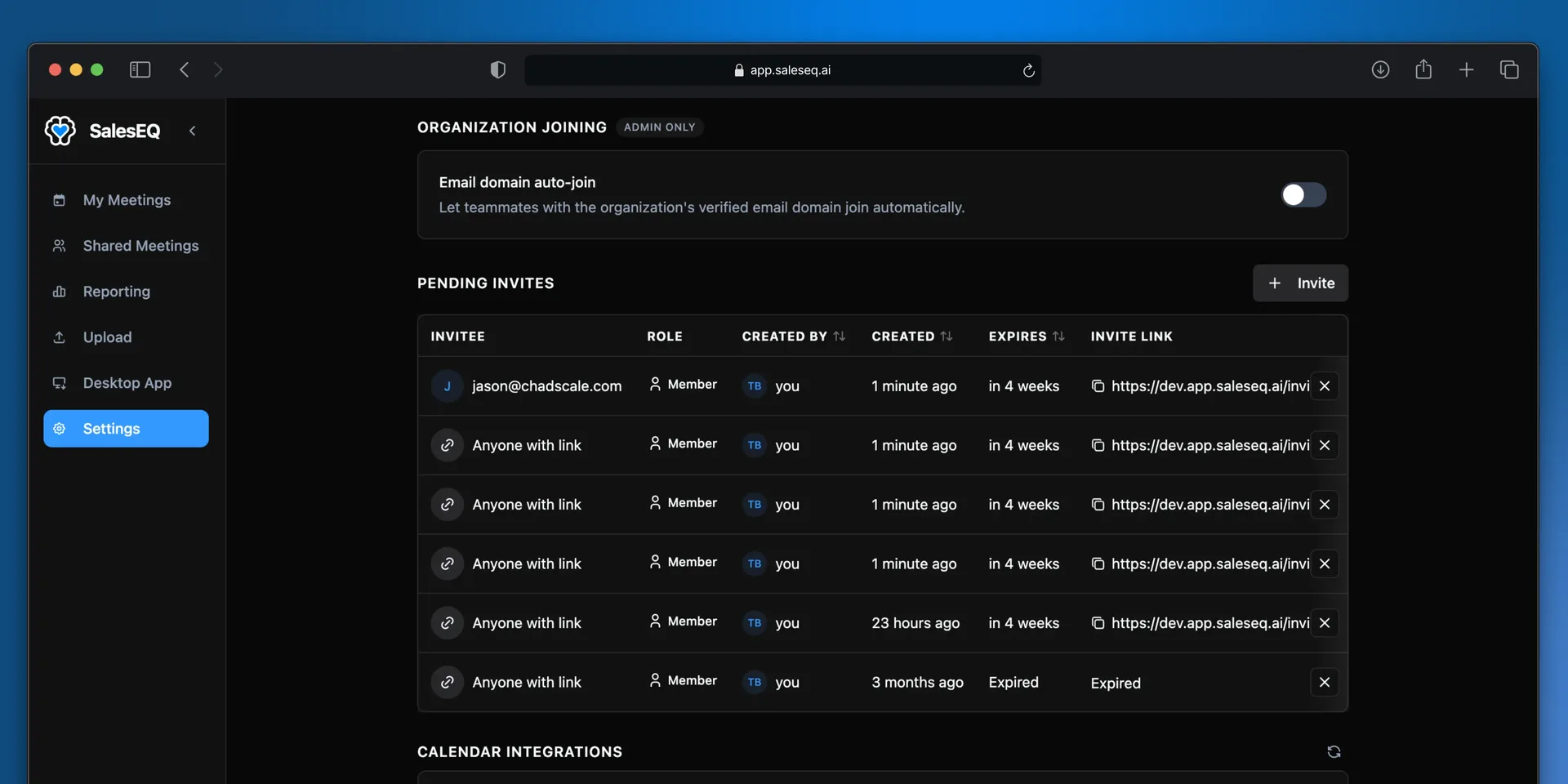
Pending invites lists everything outstanding, who created it, and when it expires. Links sent to a named address show that address. Links you copied show as Anyone with link, because a copied link does not know who will open it.
Capping how many people can join
Member limit sets a ceiling on how many people your organization accepts. Leave it at No limit unless you have a reason.
The limit is not a billing control. Billing follows your active members either way, so a limit prevents joins rather than capping what you pay.
Email domain auto-join
Turn this on and anyone with your organization's verified email domain joins it instead of starting their own.
This is worth turning on early. Without it, the most common failure is a new rep signing up, creating a second organization by accident, and recording meetings nobody else can see.
Removing someone
Remove a member from Organization members. Their meetings stay in the organization, because meetings belong to the organization rather than to a personal account.
Their meetings do not move to anyone else. Ask them to transfer ownership of their meetings before you remove them, so the work lands with whoever takes it over.
Removing someone also removes the access they had through any group. SalesEQ also disconnects any meeting imports they set up. The meetings they imported stay.
An admin who has the link to one of those meetings can open, edit, share, or delete it.
Next
- Groups covers organizing members into teams.
- Onboarding flow covers what people see on their first sign-in.
- Two-factor authentication covers adding a second step to signing in.
- Plans and billing covers how members turn into seats.