Transfer ownership
Hand one meeting, or a whole run of them, to someone else in your organization.
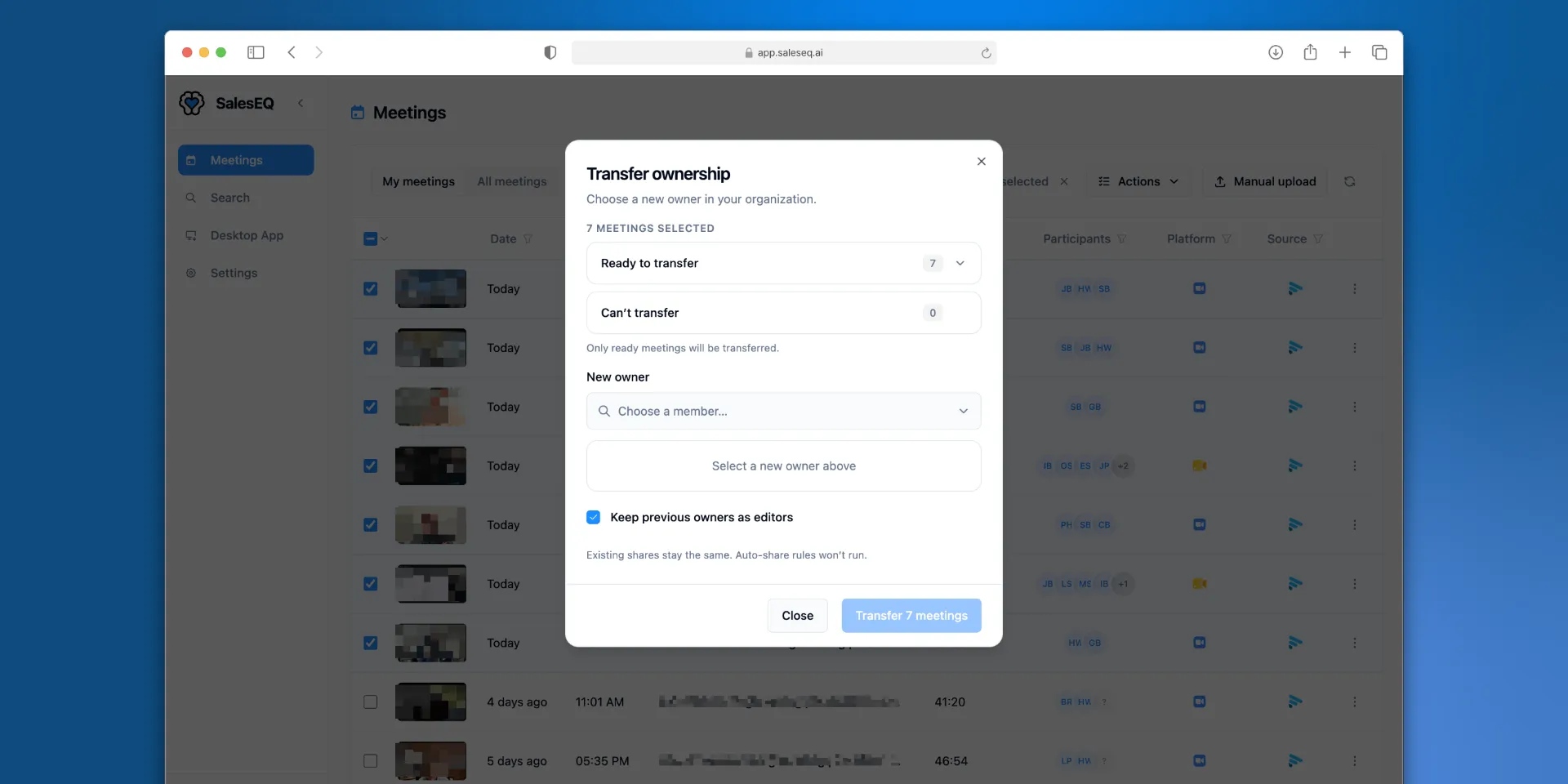
Every meeting has one owner. Transfer ownership when a meeting belongs with someone else: an account changes hands, a rep leaves, or a backlog was imported by one person on behalf of the team.
The new owner gets the meeting in My meetings and becomes the person the Meeting deletion policy applies to.
Who can transfer
- The owner can transfer their own meetings.
- Admins can transfer any meeting in the organization.
The Meetings page lists only meetings you own or that were shared with you, admins included. An admin transfers anyone else's meeting from the meeting itself, opened from its link.
Editor access is not enough. The new owner must be a member of your organization who has verified their email, so you cannot transfer to a pending invite or to someone outside the organization.
Transfer a meeting
Start the transfer
Open the meeting, select More actions next to Share, then select Transfer ownership. The same option sits in each row's menu on the Meetings page.
Choose the new owner
Pick a member from the list.
Decide whether the previous owner keeps access
Keep previous owners as editors is on by default. Leave it on and the previous owner keeps editor access. Turn it off and they lose access, unless another share still covers them.
Transfer it
Select Transfer meeting. The transfer finishes in the background, and SalesEQ tells you when it is done.
Transfer several meetings at once
Select the meetings on the Meetings page, then choose Transfer ownership from Actions. Filter first and select every matching meeting to move a whole account or a whole person's history in one go. One transfer holds up to 2,000 meetings.
The dialog splits the selection into Ready to transfer and Can't transfer, with a reason for each meeting it cannot move. Only the ready meetings transfer. The usual reasons:
- You do not have permission to transfer that meeting.
- The meeting already belongs to the person you chose.
- The meeting is still being imported, or an earlier ownership change is still finishing. Try again in a few minutes.
Verify it worked
When the transfer finishes, a notification tells you how many meetings moved and how many were skipped. Open one of the meetings and check its share settings. The new owner is listed as the owner.
What a transfer changes
A transfer changes the owner and nothing else:
- Existing shares stay. Everyone who had access keeps it.
- Auto-share rules do not run. The new owner's rules apply to their new meetings, not to meetings transferred to them.
- Who recorded or imported the meeting is kept. That history stays attached to the meeting.
A transfer is final. An imported meeting normally moves to its recorder when they join your organization. Once you transfer it, it stays with whoever you chose.
When someone leaves
Removing a member does not move their meetings. Their meetings stay in the organization with them as the owner, and only an admin can manage them after that.
Transfer them before you remove the person, while they can still do it themselves. Ask them to select everything in My meetings and transfer it to whoever takes over the work. After they leave, an admin can still transfer each meeting from its link, and can transfer in bulk any of their meetings that were shared with the admin.
Any editor access someone kept as a previous owner, or holds as an importer, stops working when they leave. It works again if they rejoin the same organization.
Next
- Share a meeting covers giving access without changing the owner.
- Members and roles covers removing someone from your organization.
- Import meetings covers who owns a meeting when it first arrives.