Share a meeting
Give a person, a group, or your whole organization access to a meeting.
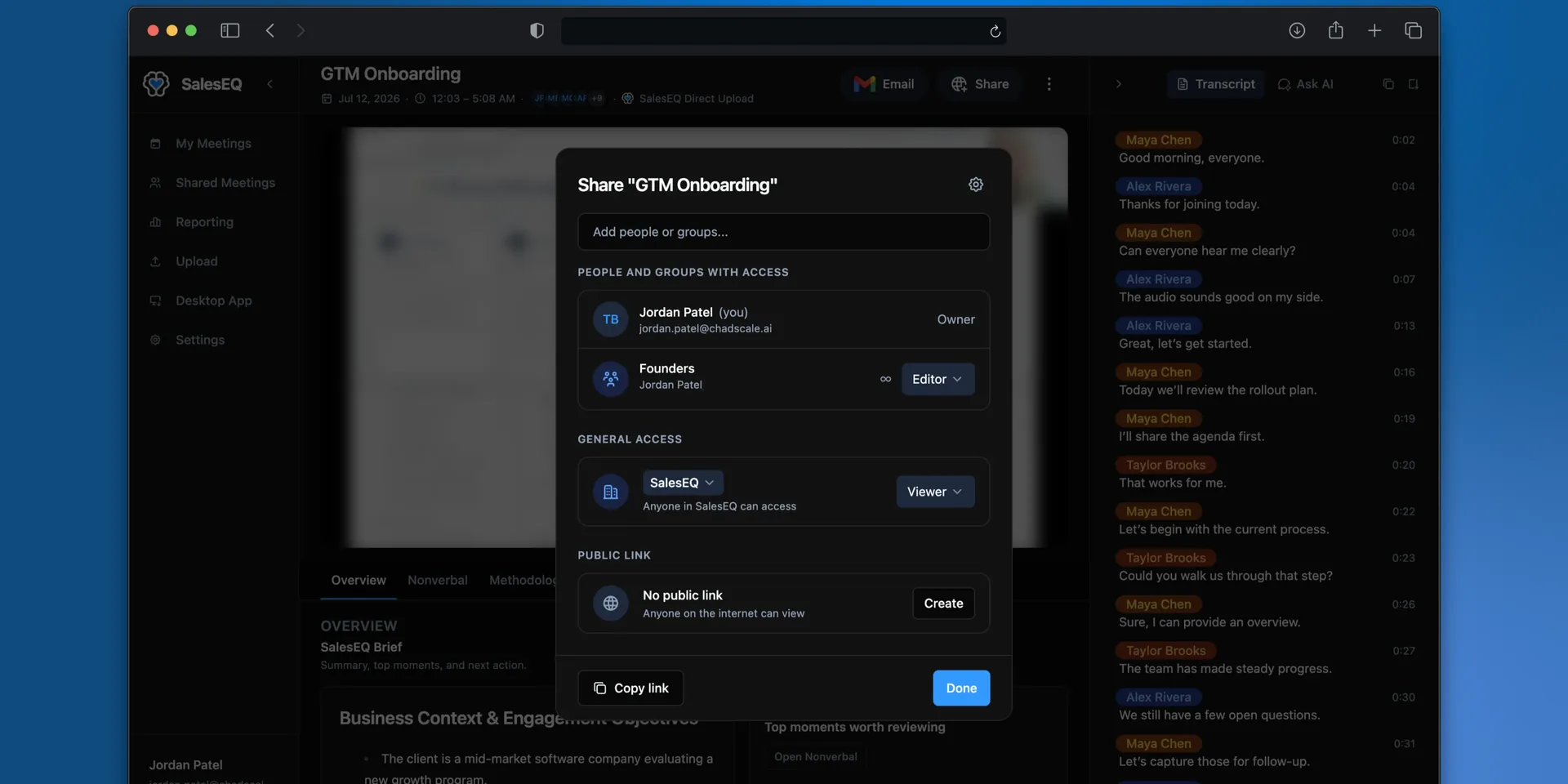
Every meeting has one owner, usually the person who recorded, uploaded, or imported it. Who else can open it depends on the organization's default sharing setting and any direct, group, or auto-share rule grants.
Share a meeting
Open the meeting and open sharing
Open the meeting and open its share settings.
Choose who gets access
Add a person by name or email, or add a group. Sharing with a group covers everyone in it, including people who join the group later.
Choose their role
| Role | What they can do |
|---|---|
| Viewer | Watch the recording, read the transcript, see the insights |
| Editor | Everything a viewer can do, plus edit the meeting and share it onward |
Editor access with an expiration can edit the meeting but cannot share it onward.
Give Viewer unless someone needs to edit or reshare the meeting. Most people only ever need to watch.
Owner is not a role you can share. Changing it is a separate action, covered in Transfer ownership. Only the owner and an admin can delete a meeting.
Share several meetings at once
Bringing a new rep up to speed, or handing an account over, means sharing a run of meetings rather than one. Do it from the meetings list instead of opening each meeting.
Select the meetings
Select the checkbox on each meeting you want. The checkbox in the header row takes the lot, and the arrow beside it chooses how much: Loaded meetings takes what the page has fetched so far, and All matching meetings takes everything behind your current search and filters, including meetings you have not scrolled to. Both show a count.
Filter first, then select all matching. Searching for an account name and taking every meeting it returns beats scrolling and selecting by hand.
Open Actions
The count of selected meetings appears above the list, next to Actions. Choose Share meetings, or Remove access to take access away.
Choose who, and their role
Add the people and groups, then pick Viewer or Editor. The role applies to every meeting in the selection.
General access is optional here and set to Keep existing by default, so the organization setting on each meeting stays as it is unless you change it.
Meetings you cannot share are skipped rather than failing the whole operation. A selection that mixes your own meetings with meetings shared with you as a viewer still works. The result tells you how many changed and how many were skipped.
Removing access removes the direct share. Someone can still reach a meeting through a group or through general access, which the dialog says as you remove them.
Verify it worked
The share settings list everyone who can see the meeting today, and how they got access: individually, through a group, or through your organization defaults.
That third source catches people out. If someone appears there without you adding them, your organization default is granting it.
Organization defaults
Admins set what happens to new meetings across the whole organization:
| Default | What it means |
|---|---|
| Restricted | Meetings stay private to their owner until someone shares them |
| Organization (viewer) | Every member can watch every meeting |
| Organization (editor) | Every member can watch and reshare every meeting |
Restricted suits teams with sensitive meetings. An organization default suits teams that want everything open by habit. Change it under Organization Default Sharing.
New organizations start at Restricted. Changing the default affects meetings created afterward and does not rewrite access on existing meetings.
Why a direct share is not the same as general access
Both can let someone open a meeting. Only a direct or group share puts it where they will find it.
A direct share to a person or a group adds the meeting to All meetings and makes it available in Search for the recipient.
General access makes a meeting reachable by everyone in the organization when they have its link. It does not add the meeting to All meetings or Search.
The pattern that works is to leave general access at Restricted or Organization (viewer), then use auto-share rules to share each meeting directly with the people who should see it. Access reaches the right people, and it reaches them in the place they look.
Sharing outside your organization
You can add someone outside your organization by email. If they already have a SalesEQ account, the meeting appears in their All meetings like any other direct share. If they do not, they get an email saying a meeting was shared with them, and they can create an account to watch it.
That second path asks something of the recipient. To send a meeting to a customer or a candidate, a public link is usually the kinder option, because it opens without an account.
Next
- Groups covers sharing with a team rather than a list of names.
- Auto-share rules covers sharing without doing it by hand.