Live AI rules
Decide which meetings open Live AI, and set up the window before the meeting starts.
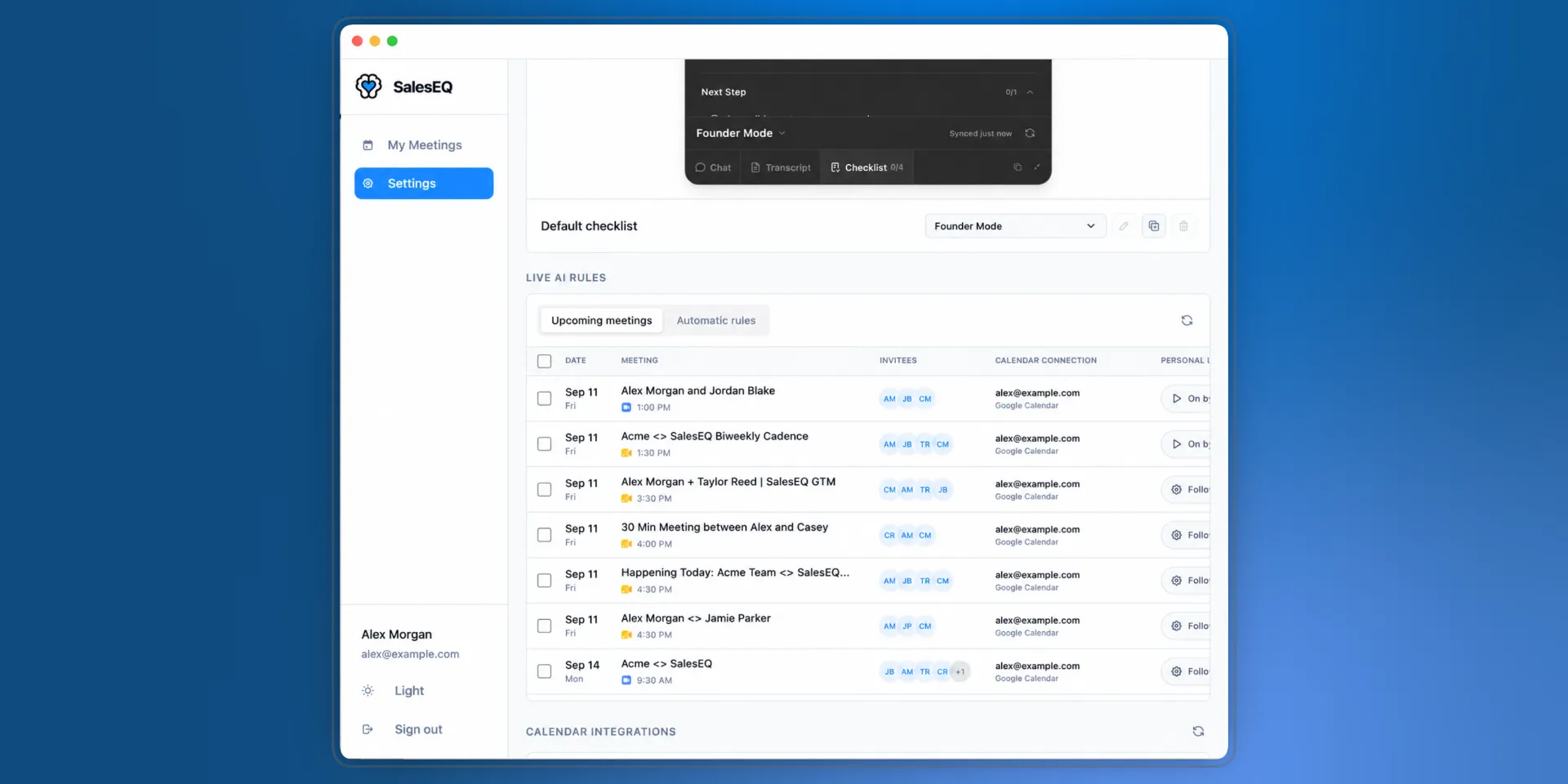
Live AI starts with your recording unless something says otherwise. Live AI rules are where you say otherwise, and where you set up what the window holds before you are in the meeting.
Find them in the desktop app under Settings, in the Live AI rules section. Upcoming meetings lists what is on your calendar. Automatic rules holds the rules that decide for you.
The default
Start Live AI by default sits under Live AI in Settings, above this section. It is on, and it decides what happens on a meeting no rule matches.
Changing it affects your next meeting rather than the one you are in. Closing or minimizing the window during a meeting is a display action and does not change this setting.
Who decides
Two settings decide whether Live AI starts, and they belong to different people.
Personal Live AI is yours, and it is On by default or Off by default.
Organization Live AI policy is the admin's, and it has three values:
| Policy | What it does |
|---|---|
| Let users decide | Members use their own Live AI settings. This is the starting point. |
| Require Live AI | Live AI starts whenever a member records the meeting. |
| Block Live AI | Live AI does not start, and members cannot start it during the meeting. |
Require Live AI does not start a recording. It decides what happens once one starts.
Block Live AI is the only setting that takes away the manual control. With the other two, a member whose Live AI did not start can still open it mid-meeting.
SalesEQ resolves the policy when your recording begins and holds it for that meeting. A rule changed while you are talking does not reach the meeting you are in.
What wins
Working from the top, the first line that applies decides:
- An organization setting on that meeting.
- The first matching Organization Live AI rule.
- Left to you, which resolves in the same order: a personal setting on that meeting, then the first matching Personal Live AI rule, then Start Live AI by default.
Automatic rules
The Automatic rules tab holds Personal Live AI rules and Organization Live AI rules. Both lists are ordered, and the first matching rule wins, so the specific rules belong above the general ones. Organization rules are admin-only.
Rules match on the calendar invitation, using the same fields and operators as recording rules: Meeting title, Organizer email, Invitees, and, on your own rules, Calendar connection. That includes include anyone outside, which separates external meetings from internal ones. See what a rule can match on.
Recording rules and Live AI rules are separate lists and do not affect each other. A meeting can record without Live AI, and a meeting blocked from recording never reaches Live AI at all, because Live AI reads the live capture.
Set up a meeting before it starts
The Upcoming meetings tab carries four columns you can set per meeting, and a last one, What Live AI will do, that resolves them into what actually happens.
Personal Live AI and Organization Live AI policy work like the recording columns. They start at Follow rules or Follow policy, showing what your rules produced. Picking anything else overrides them for that meeting alone.
Checklist picks which checklist the meeting opens with. Choose one from your catalog, choose No checklist, or leave it on your default. See Checklist for building them.
Quick actions picks which buttons the Chat composer shows, up to three, in the order you choose. Leave it alone and the meeting uses the buttons you have selected everywhere else. See Chat for the catalog.
Setting a checklist or quick actions in advance is the point of the tab. Walking into a renewal call with the renewal checklist already up, and the buttons you want for it, beats setting both while somebody is talking to you.
Checklist and quick actions stay editable even when Live AI is blocked or unavailable for the meeting, so the setup survives a policy change.
Change several meetings at once
Select meetings in the Upcoming meetings tab and a toolbar appears above the table. It offers Personal Live AI, Organization Live AI policy, Checklist, and Quick actions.
Pick a value, then select Apply to the selected meetings. Up to 100 go in one batch, and meetings that cannot take the change are skipped and reported rather than failing the rest.
This is the fastest way to put one checklist on a week of meetings.
Verify it worked
Open the Upcoming meetings tab and read What Live AI will do on a meeting your rule should match. It names the rule that decided.
Then record the meeting. Live AI opens, or stays shut, to match.
Next
- Overview covers the window and its three tabs.
- Checklist covers building the checklists you assign here.
- Recording rules decides whether the meeting records at all.