Chat
Ask a question during the meeting and get an answer from the meeting, or from the web.
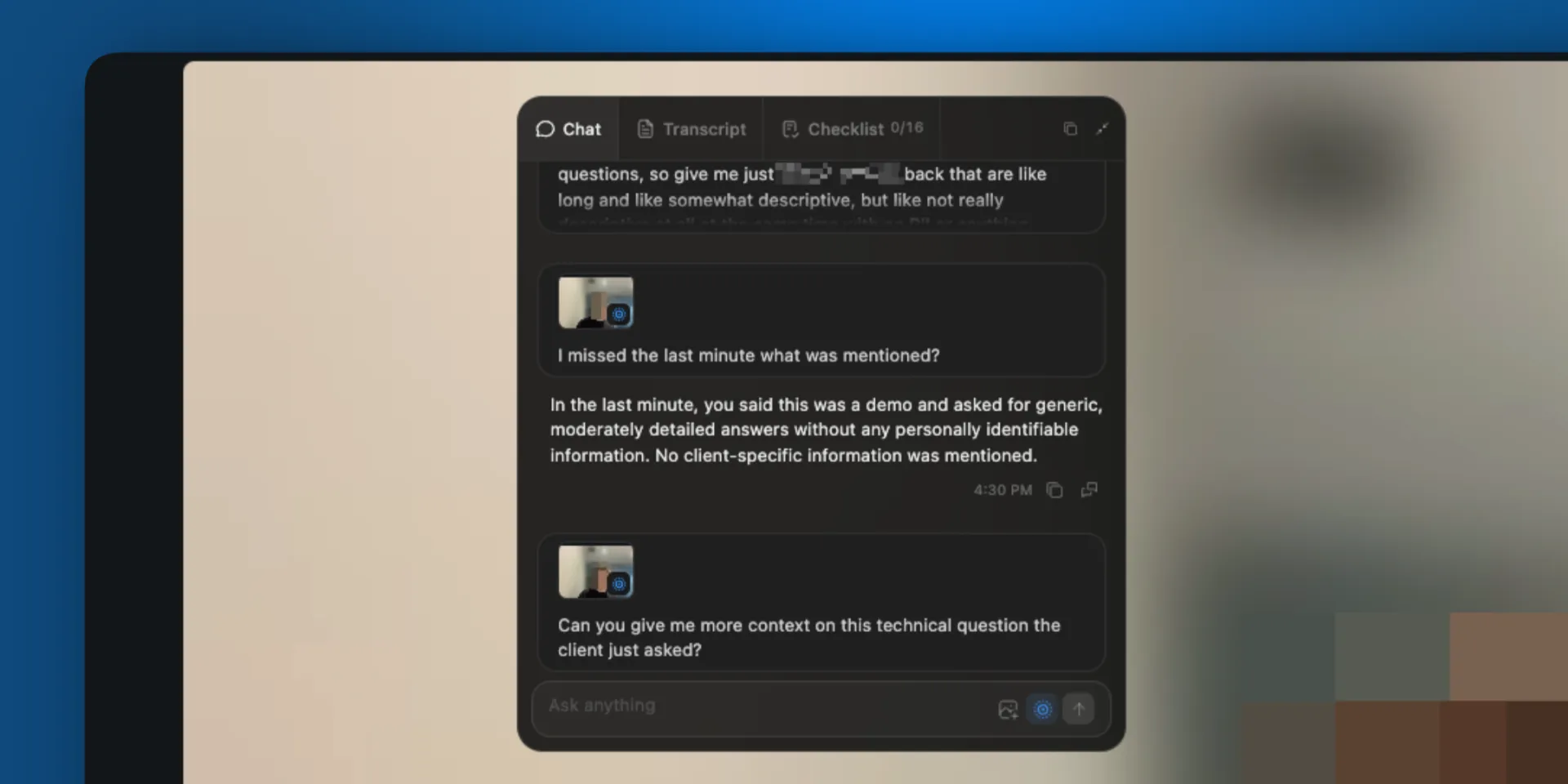
Chat answers questions about the meeting you are in, while you are still in it. Use it to recall something you missed, check a claim, look something up, or work out what to say next.
Ask a question
Type into the box on the Chat tab and press Enter. Questions that work well:
What number did they say for headcount?
What have they asked for that I have not answered?
Who on their side has not spoken yet?
What did they say about timing earlier?
Answers are short on purpose. You are reading them in the middle of a conversation, so Chat is built and tested to stay scannable rather than thorough. Ask for more detail and it gives you more detail.
Quick actions
The buttons in the composer send a prompt in one select, without typing. They behave like a message you typed, so they carry the same meeting context and queue the same way.
Three are shown at a time. Assist, Explain, and Catch me up are the ones you start with. Fact check, Answer, and LinkedIn are available to swap in, and LinkedIn looks up whoever you are talking to and comes back with their profile and their recent history.
Change them under Chat quick actions in the desktop app's Settings:
- Select Choose actions and pick the three you want shown, in the order you want them.
- Write your own with a title of up to 16 characters and the prompt it sends.
- Check the preview, which shows the composer as it will look in the meeting.
A quick action you write is worth the effort when it is specific to how you sell. A prompt that names your competitors and asks how to position against whichever one comes up is a better use of a button than anything generic.
Share one with your organization
Each quick action you write is Mine or Organization.
Mine keeps it yours. Nobody else in the organization sees it, and it follows you to your other computers.
Organization puts it in the shared catalog, where any member can select it. Any member can share one, not only an admin. Sharing adds the button to the catalog and changes nobody's selection, so people opt in by choosing it.
Editing a shared action stays with whoever made it and the organization admins. An edit reaches other people's meetings the next time their catalog refreshes, including mid-meeting, though a prompt already sent keeps the text it was sent with.
SalesEQ blocks deleting a shared action, or making it personal again, while another member still has it selected. It tells you how many people that is, so a button somebody relies on does not disappear from under them.
You get 50 personal quick actions and 200 shared ones per organization, and a prompt can run to 20,000 characters. Presets and other people's shared actions do not count against your 50.
Set the buttons for one meeting
Quick actions are also assignable per meeting, ahead of time, alongside the checklist. Walking into a renewal call with the right three buttons already up is worth more than swapping them while somebody talks. See Live AI rules.
What Chat can see
Every question carries the meeting with it, so you never have to explain what is going on:
- The transcript so far, with each speaker named.
- The meeting events, including who joined, who left, and when a screen share started.
- The calendar event, when the meeting came from one. That covers the title, the scheduled times, the invited attendees, and the organizer's description.
- Your earlier messages in this chat.
- The meeting view, when the meeting-view control is on.
Calendar details are context rather than fact. Chat treats what people actually said as the stronger evidence when the two disagree.
Include the meeting view
The meeting-view control in the composer attaches a picture of your meeting to each question. Use it when the answer depends on something visible rather than something said, such as a slide on screen.
SalesEQ captures the meeting's own window. Zoom and the Microsoft Teams desktop app each give the meeting a window of its own, so this works whatever else you have in front of you.
Google Meet is the exception, because there the meeting is a browser tab and the window belongs to the browser. Chat gets whichever tab is in front, so leave Meet on the active tab while you ask.
You can also attach up to five images of your own with the image control.
Searching the web
Chat searches the web when the answer is not in the meeting, and runs several searches at once when a question needs them. Above the answer you get a receipt showing what was searched, and the answer cites its sources.
While it is answering
Send another message while an answer is streaming and it queues behind the current one. From there:
- Steer stops the current answer and takes your queued message now.
- Edit changes the queued message before it is sent.
- Stop ends the current answer where it is.
On any message you have already sent, Edit and resend reruns it. On any answer, you can copy the answer on its own or the conversation through that point.
The conversation is not saved
The chat is discarded when the meeting closes, along with any images you attached. Copy what you want to keep before you leave: each answer carries a control to copy that answer, and another to copy the conversation through it. See Save anything you want to keep.
Once the meeting ends, use Ask AI on the meeting itself. It reads the processed transcript along with the audio and video, so it knows things Chat could not.
Next
- Checklist tracks objectives instead of answering questions.
- Live AI rules covers choosing a meeting's buttons before it starts.
- Ask AI covers asking about a meeting after it ends.
- AI assistants covers questions that span more than one meeting.