Checklist
Track whether you have covered what you meant to cover, with evidence from the meeting.
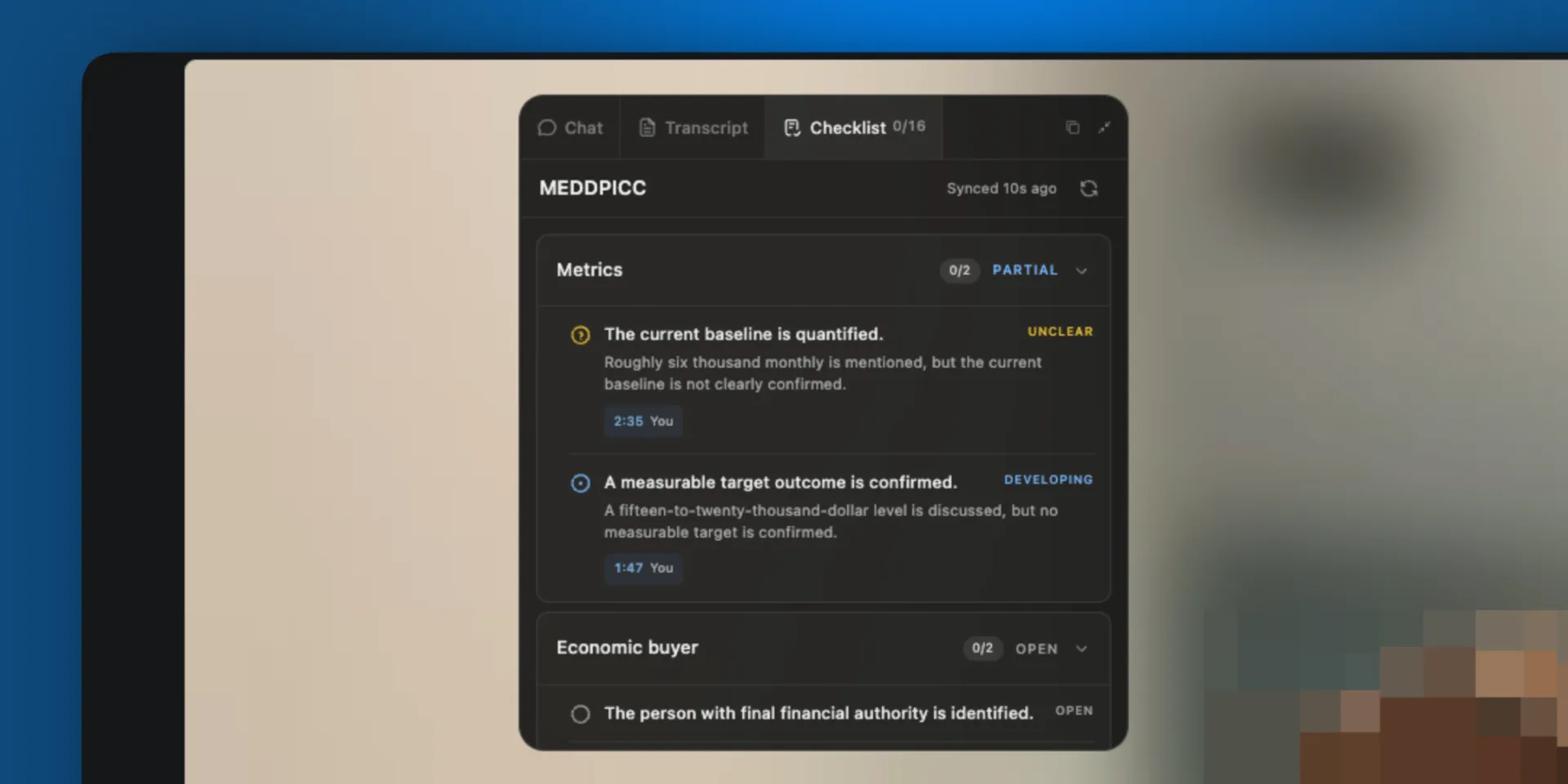
Checklist tracks the objectives you need to cover before the meeting ends. It reads the meeting as it happens and marks each objective against what has actually been said.
Checklists are saved to your organization, not to one machine. Keep as many as you need, set a default for your meetings, and switch to a different one mid-meeting.
The tab itself carries a count of the acceptance criteria covered so far, so you can see where you stand from Chat or Transcript without switching over.
Build a checklist
Open the desktop app, go to Settings, and find the Checklist section. The checklist under Default checklist is the one your meetings start with. Choose No checklist to record without one.
Your default is the fallback. Any upcoming meeting can be given a checklist of its own, and a week of them can be set in one go, under Live AI rules.
Start from a preset
The checklist menu includes presets for common frameworks, such as MEDDPICC, and a few of our own, such as Founder Mode. A preset arrives complete, with the title, the objectives, and the acceptance criteria filled in.
Presets cannot be edited in place. To adapt one, select it and choose Duplicate checklist. The copy is yours, and you can cut, reword, and reorder it until it matches how you run meetings.
Or write your own
- Select New checklist and name it. The title is your own label for it, up to 30 characters.
- Select Add objective and give it a title, such as Budget or Next steps.
- Add at least one acceptance criterion to the objective.
An acceptance criterion is what has to be true for the objective to count as covered. Write it as a statement rather than a question:
An available budget or range is confirmed.
The final decision-maker is identified.
A target decision date is confirmed.
An objective with no criteria does not appear in meetings, because there is nothing to evaluate it against. A checklist holds up to 50 objectives and 50 acceptance criteria in total, with at most 8 criteria on any one objective.
Choose who can use it
Visible to on each checklist controls who sees it:
- Only me keeps the checklist personal.
- My organization shares it with everyone in your organization, so a team can run the same checklist without rebuilding it.
Anyone in the organization can run a shared checklist. Editing or deleting it stays with the person who made it and the organization admins, and SalesEQ confirms before a change that affects other people already using it.
Statuses
Criteria are assessed individually, and each objective takes its status from the criteria under it.
| Status | On a criterion | On an objective |
|---|---|---|
| Open | Nothing in the meeting speaks to it yet | Every criterion is still open |
| Unclear | Something touched on it, and it does not settle it | Shown as Partial |
| Developing | Partly established, not yet enough | Shown as Partial |
| Covered | Established by what was said | Every criterion is covered |
Expand an objective to see each criterion, its status, and why Checklist assessed it that way.
Evidence you can check
Each criterion carries timestamped evidence: who said it, and when. Selecting a piece of evidence takes you to that moment in the transcript, and you can come back to the checklist from there.
Evidence comes in two kinds. Most of it supports the assessment. Evidence that cuts against it is marked as contradicting, which is what stops an objective looking settled after somebody walked it back.
Every check reads the whole meeting rather than the last few minutes. An objective raised early and resolved forty minutes later still connects.
Switch or edit mid-meeting
The checklist title on the tab is a menu. Use it to switch to another checklist, drop to No checklist, start a New checklist, or edit the one you are running, all without leaving the meeting.
Switching does not cost you anything. The checklist you switch to is assessed against the whole conversation so far, not only what is said after the switch. Each checklist also keeps its own assessment for the meeting, so switching away and back picks up where it left off.
Edits reach the meeting the same way. Save a change to the checklist you are running, from the tab or from Settings, and the live assessment updates to match.
When it rechecks
Checklist reruns on its own as the conversation moves. While objectives are still outstanding it rechecks at most once every 15 seconds. Once everything is covered it slows to between one and two minutes, and long meetings slow down the same way.
To pull it forward, select the recheck control next to the checklist title. It runs against the latest transcript. The control stays unavailable until the conversation has started, because there is nothing to check against before then.
What is not saved
Checklists themselves are saved: your catalog, your default, and anything you share with the organization all live in your account.
The results of a meeting are not. Checklist is a live instrument, not a record, and the assessment is discarded when the meeting closes. This tab has no copy control, so a screenshot before you leave the meeting is the only way to keep an assessment. See Save anything you want to keep.
Next
- Chat answers questions instead of tracking objectives.
- Transcript is where checklist evidence points.
- Live AI rules covers assigning a checklist to a meeting in advance.
- Meeting insights covers the analysis produced after a meeting.