Calendar
Connect Google Calendar or Microsoft Outlook.
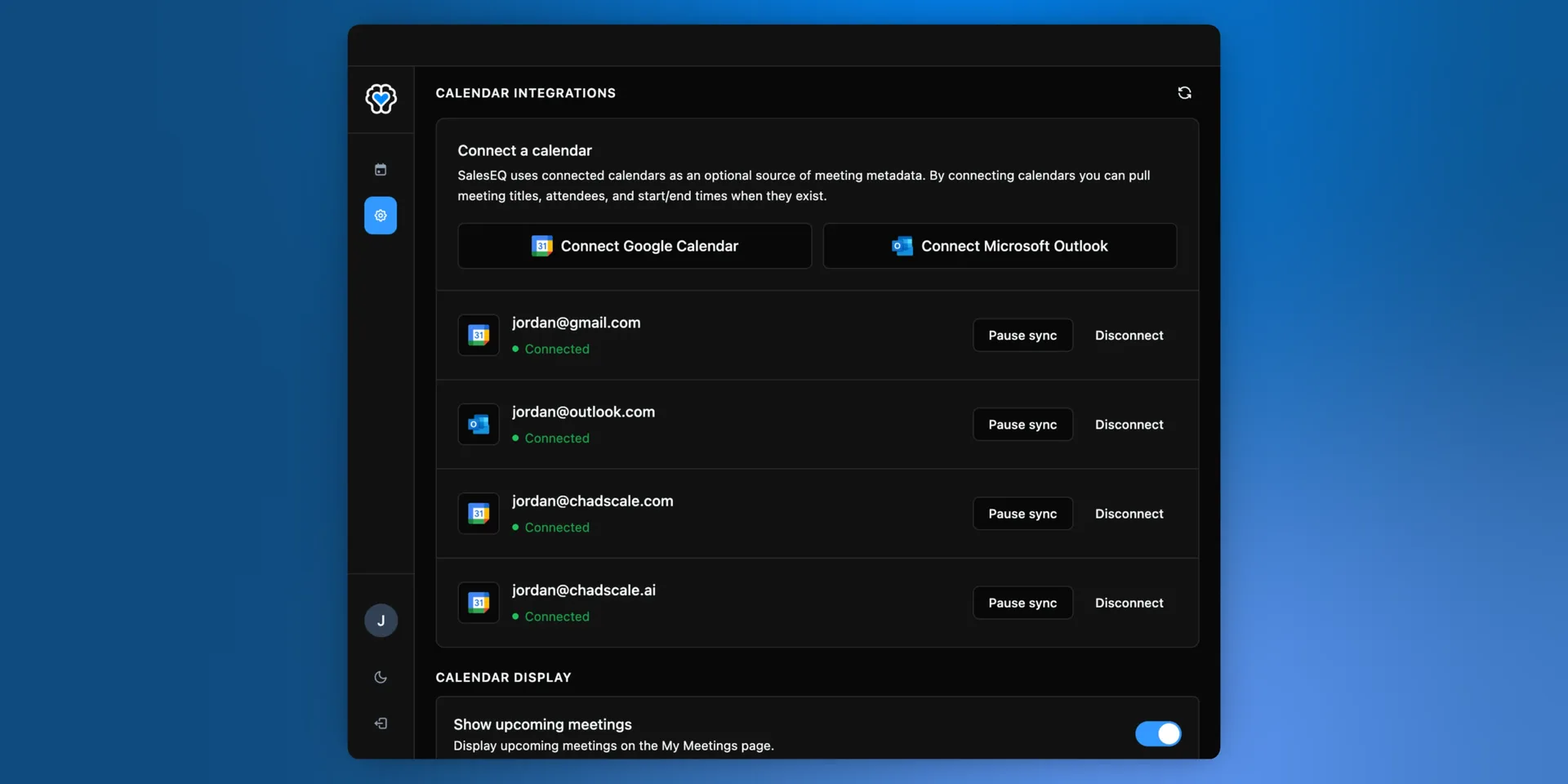
Connecting a calendar lets SalesEQ match each recording to the event it came from. Meetings arrive carrying the title you actually put on the invite, and the people you invited.
It also tells the desktop app what is ahead, so it can notify you before a meeting starts and let you join and record it in one step.
Connecting a calendar does not put a bot in your meetings. SalesEQ records on your own machine either way. The calendar supplies the context around the recording.
Connect as many as you need
Connect as many calendars as you like, from either provider. Two Google accounts and an Outlook account can sit in the same SalesEQ account.
That matters when your meetings are split across accounts: a fractional CRO working with several companies, a consultant with a client login, or anyone whose personal calendar holds real meetings. SalesEQ reads them as one schedule, so nothing depends on which account an invite happened to land in.
Connect
Open settings
Go to Calendar integrations in the web app, or open Settings in the desktop app. Both manage the same connections, so it makes no difference which you use.
Choose your provider
Connect Google Calendar or Microsoft Outlook, and repeat for each account you want.
Authorize SalesEQ
Sign in with the account holding the calendar you take meetings on.
Verify it worked
The connection shows as Connected in settings. It may sit at Connecting for a while first, which is normal.
Record your next meeting. It arrives named after the calendar event, with the attendees attached.
Knowing what is coming up
The desktop app lists Upcoming meetings across every calendar you connected, each one showing its platform and length. Join and Record opens the meeting and starts SalesEQ with it.
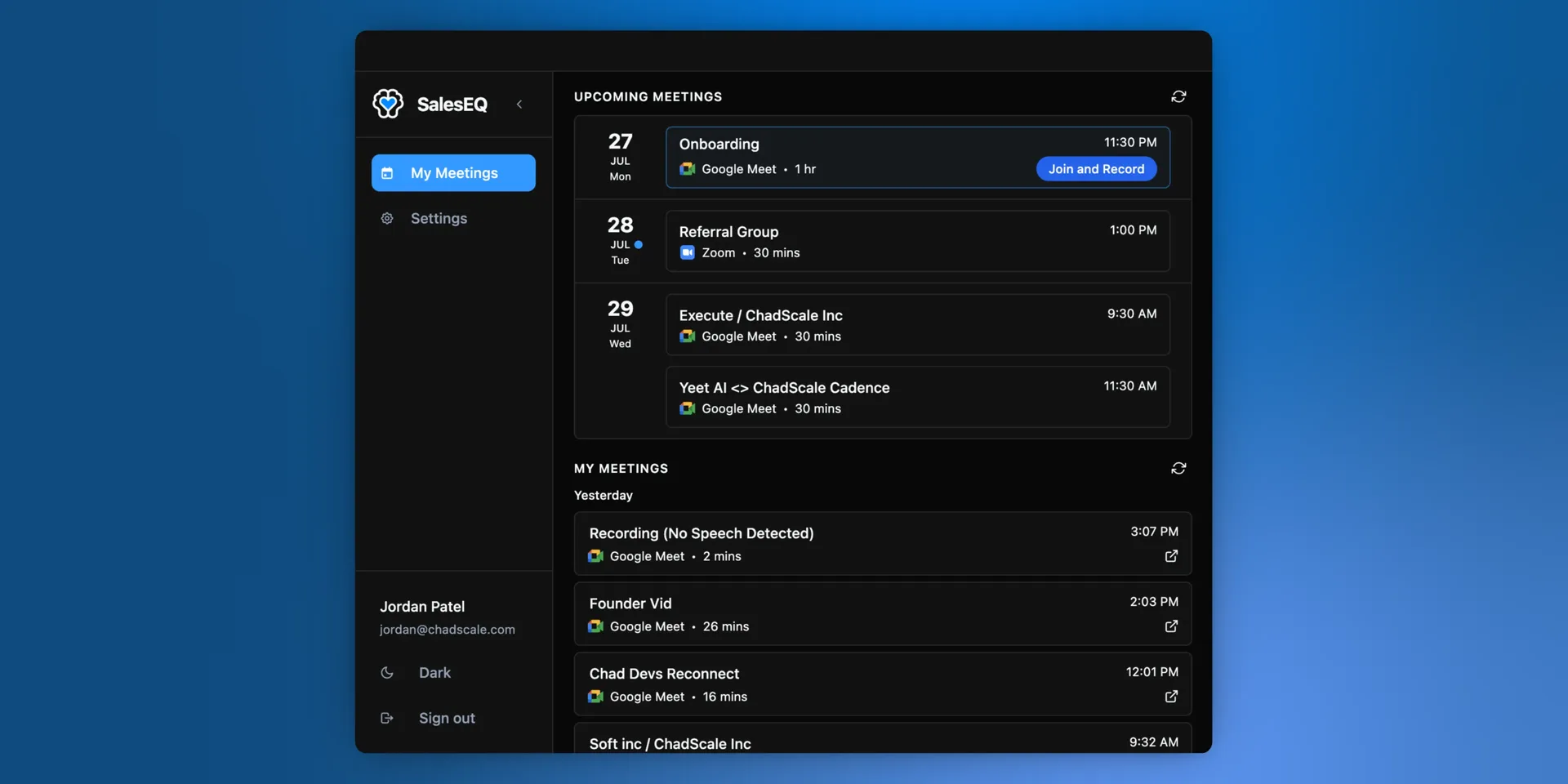
Join and Record appears about five minutes before a meeting starts and stays until the meeting ends. It is still there once a meeting is already running and you have not started recording.
A notification arrives about a minute before the start with the same option, so you do not have to be looking at the app to catch it.
Three settings in the desktop app control all of this:
| Setting | What it does |
|---|---|
| Show upcoming meetings | Shows or hides the list on My Meetings |
| Show upcoming meetings with no participants | Includes events with no participants and no video link |
| Meeting notifications | Notifies you about a minute before a meeting starts |
What it changes
| Without a calendar | With a calendar |
|---|---|
| A generated title | The title you put on the invite |
| Who spoke, and who was in the meeting | The same names plus emails, and anyone invited who never came |
A recorded meeting already knows who turned up and who said what. What a calendar adds is who was meant to be there and how to reach them.
Those emails are what tie a meeting to a person and a company across your other tools. Auto-share rules, follow-up drafts, and CRM pushes all act on them.
Pausing and disconnecting
Two ways to stop a calendar, and the difference is whether you sign in again later.
Pause sync stops SalesEQ reading that calendar and keeps the connection. Enable sync turns it back on, with no authorization to repeat.
Disconnect removes the connection. Reconnecting means going back through sign-in.
Either way, meetings already recorded keep the titles and attendees they were matched with.
Next
- Automatic recording covers what happens when a meeting is detected.
- What gets captured covers where each part of a meeting comes from.