Email and follow-up drafts
Turn a meeting into a follow-up draft in Gmail or Outlook.
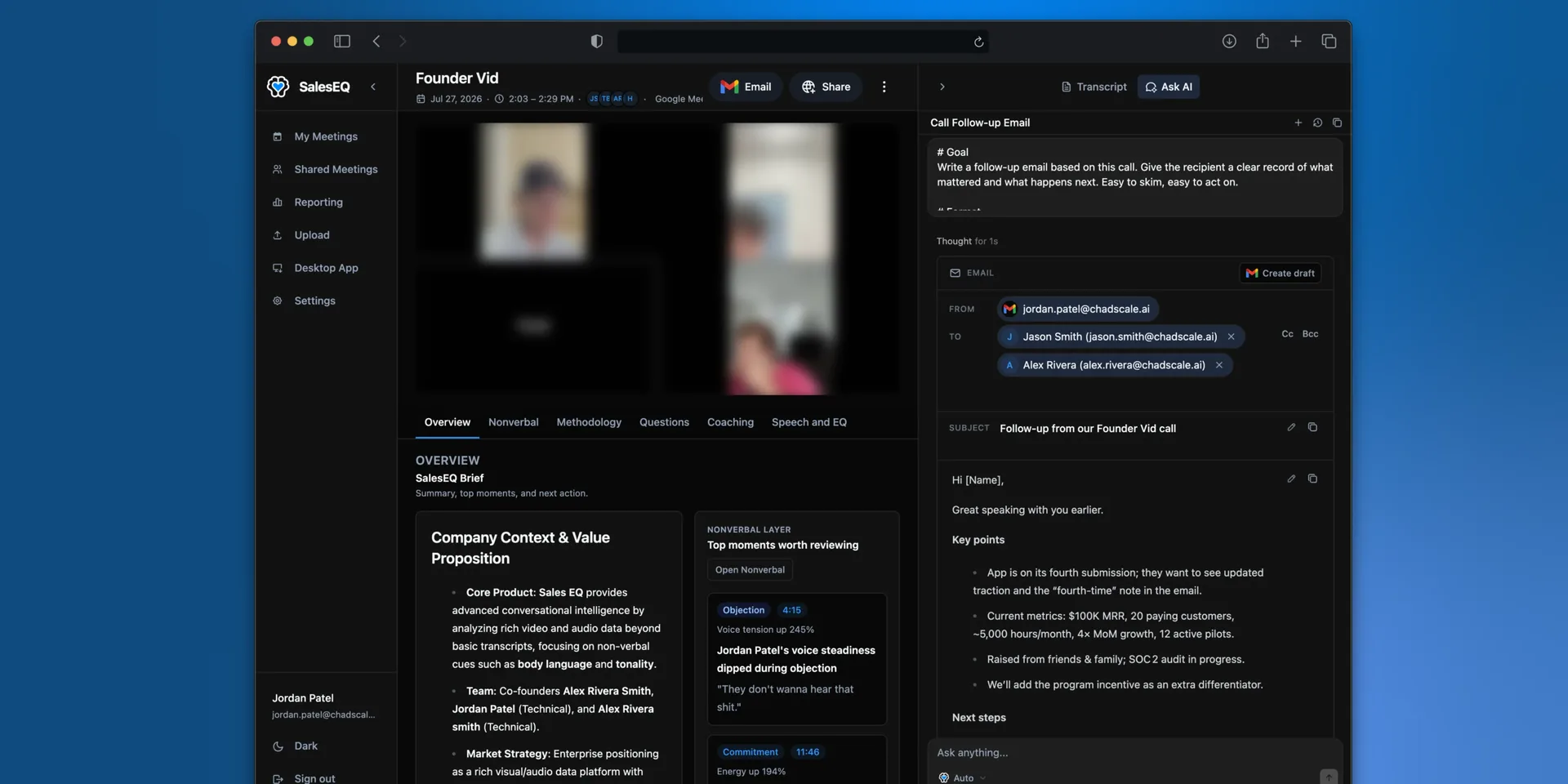
Connect your inbox and SalesEQ writes follow-up emails as drafts in your own mailbox, where you edit them like any other draft.
Nothing is ever sent on your behalf. You review and send every email yourself.
Connect
Connect Gmail or Outlook
Choose your provider and authorize SalesEQ with the mailbox you send from.
Draft a follow-up
Two ways, and they end in the same place.
Select Email at the top of a meeting. It opens Ask AI and runs the follow-up prompt for you.
Or ask Ask AI yourself. That is the better route when you want to say what the email is for, because a recap and a proposal follow-up are different emails.
Either way the draft comes back with a subject line. With a connected mailbox, write it into your drafts folder. Without one, copy it in a single click and paste it wherever you send from.
Verify it worked
Open your drafts folder in Gmail or Outlook. The draft is there, unsent, and editable.
Getting a usable draft
The draft is a starting point, not a send-ready email. Two things improve it:
- Correct the speaker names first. A follow-up that attributes a commitment to the wrong person is worse than no draft at all.
- Say what the email is for. Asking for a recap produces something different from asking for a proposal follow-up.