Automatic recording
Decide what SalesEQ does when it detects a meeting.
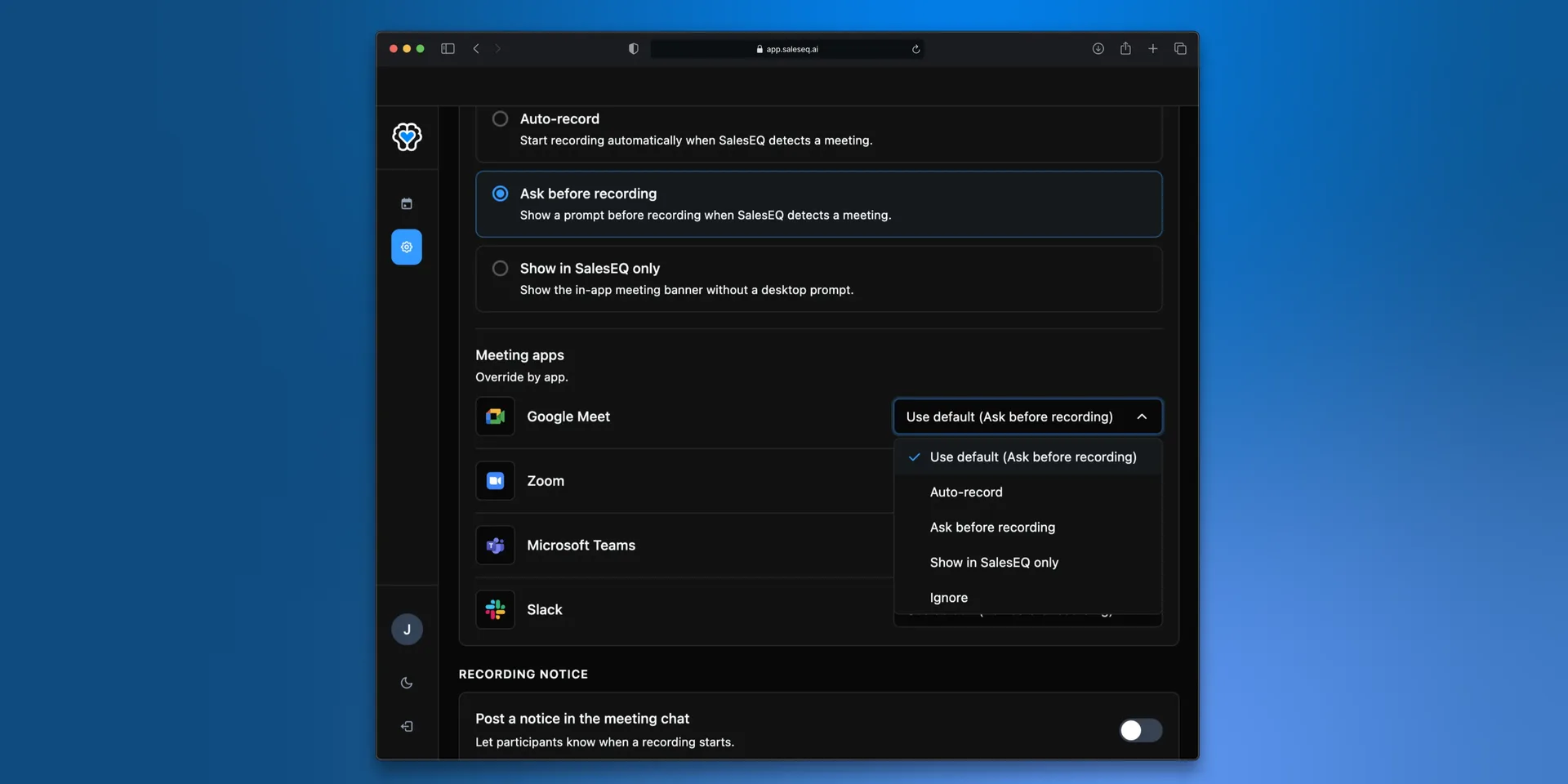
SalesEQ watches for meetings on the platforms listed under Desktop app recording. You decide what happens when it finds one, for all platforms at once or per platform.
The four behaviors
| Behavior | What happens when SalesEQ detects a meeting |
|---|---|
| Record automatically | Recording starts on its own. |
| Ask before recording | You get a notification, and the meeting appears in the desktop app with a Record button. |
| Show in SalesEQ only | The meeting appears in the desktop app. No notification. |
| Ignore | SalesEQ leaves that platform alone. You cannot record there at all. |
Ask before recording is the safe default while you get used to the desktop app. Record automatically is what most reps settle on, because the meetings you forget to record are the ones you most want back.
This page covers the floor: what SalesEQ does when nothing more specific applies. To decide per meeting, or by what is on the invitation, see Recording rules.
Set your default
Open desktop settings
Open the SalesEQ desktop app and go to Settings.
Choose a default behavior
Pick Record automatically, Ask before recording, or Show in SalesEQ only. This applies to every platform SalesEQ detects.
Override individual platforms
Set a different behavior for a single platform where you want one. Record your Zoom meetings automatically while ignoring Slack huddles, for example.
Ignore is available as a per-platform override.
Verify it worked
Join a meeting on a platform set to Record automatically. The control bar appears on its own and shows a running timer.
Next
- Recording rules covers departing from this default for one meeting, or for a whole category of them.
- Recording notice tells people a recording started, which matters most when it starts on its own.
- What gets captured covers what a recording produces.
- Delete and discard covers getting rid of a meeting you did not want.