Desktop app recording
Capture a meeting from your Mac or Windows machine.
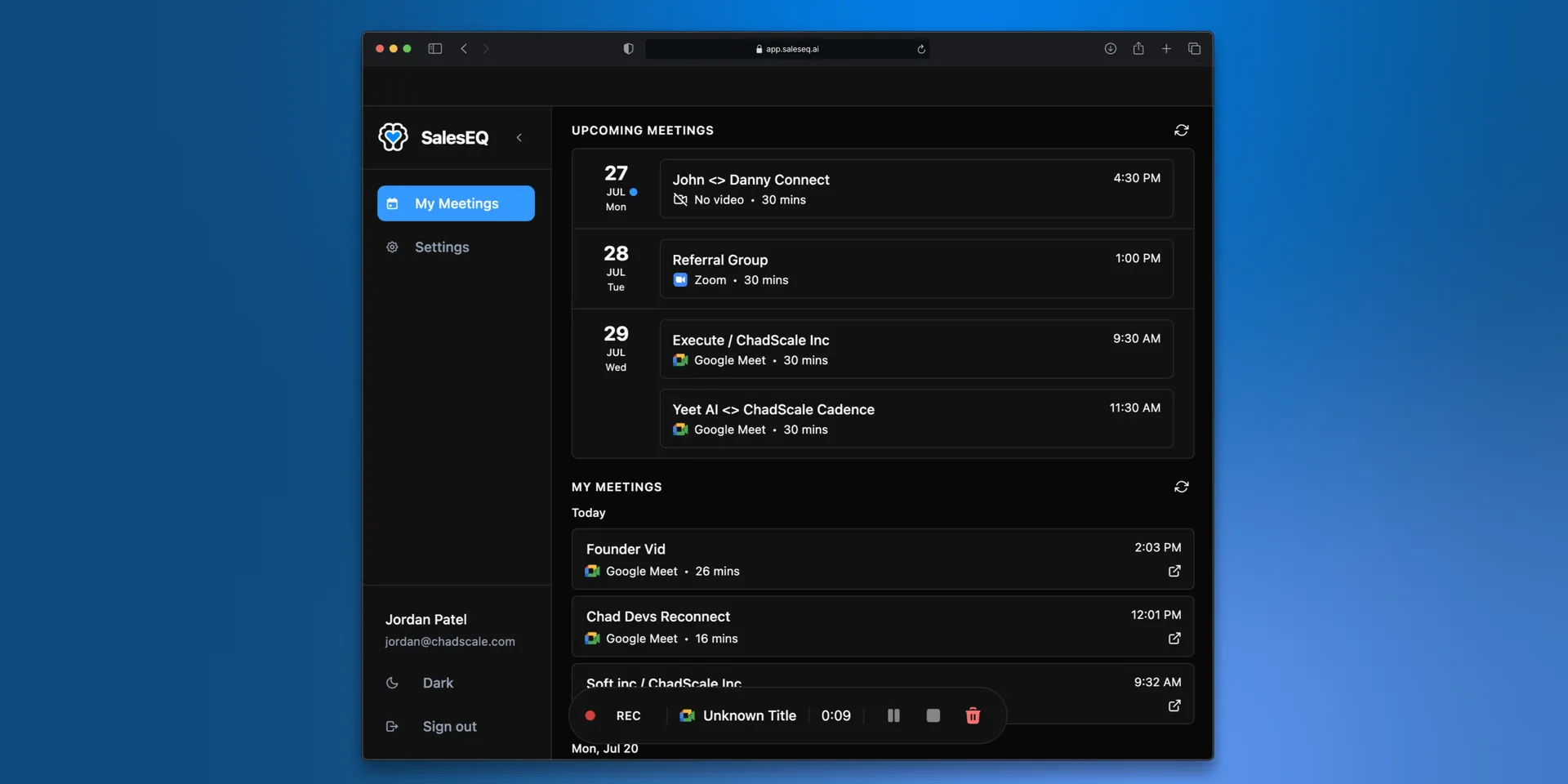
SalesEQ records from your own machine rather than sending a bot into the meeting. Nobody sees an extra participant, and the meeting works the same as it always does.
Recording starts only on a meeting SalesEQ detects, on one of the platforms below, and only when you start it or you set that platform to record on its own. While it runs, SalesEQ reads the meeting window and nothing around it.
Telling people you are recording
No bot in the meeting means nobody gets the usual signal that a recording is running, so saying so is on you. Consent rules vary by country and by state.
SalesEQ can post a notice in the meeting chat as a recording starts. See Recording notice.
Supported platforms
Meeting apps, recorded from their desktop app:
| App | macOS | Windows |
|---|---|---|
| Zoom | Yes | Yes |
| Microsoft Teams | Yes | Yes |
| Slack huddles | Audio only | No |
Google Meet runs in a browser, so support depends on which one:
| Browser | macOS | Windows |
|---|---|---|
| Chrome | Yes | Yes |
| Edge | No | Yes |
| Safari | Yes | Not applicable |
| Arc, Brave, Comet, Dia | Yes | No |
Google Meet companion mode is not supported on either platform.
SalesEQ cannot record a meeting on anything else.
Before you start
- The desktop app installed and signed in. See Download SalesEQ.
- Screen recording and microphone permissions granted to the desktop app.
Record a meeting
Get into the meeting
Join the meeting however you normally do, from your calendar, from a link, or from the SalesEQ desktop app.
With a connected calendar, SalesEQ also lists your upcoming meetings and offers Join and Record shortly before one starts. That button opens the meeting in your default browser. Detection then happens the same way it would have if you had opened the link yourself.
Start recording
A bar appears at the bottom of the SalesEQ desktop app when it detects the meeting, and a notification comes with it. Select Record.
You can also start from the menu bar or system tray without opening the main window.
Work with the recording while it runs
Pause blanks the video and drops the audio for as long as it lasts, then picks up when you resume. The recording stays one meeting. Use it when a customer reads out card details, when someone shares a screen with personal data, or when the conversation turns somewhere that does not belong in a recording.
Live AI runs alongside, transcribing as people talk. Ask it a question, or track your objectives against what has been said. See Live AI.
Finish the meeting
Stop the recording, or leave the meeting and let it end on its own. Either way the file uploads and processing starts.
If you did not mean to record the meeting, select Discard recording in the recording bar before you stop. A discarded recording is never processed and never reaches your organization.
Verify it worked
The meeting appears under My meetings on the Meetings page once processing finishes, and it opens.
SalesEQ is not detecting your meeting
No bar and no notification means SalesEQ has not detected the meeting, and it cannot record one it has not detected. Work through these in order:
- Check the platform against the table above. Companion mode and an unsupported browser are the two that catch people out.
- Make sure you are in only one meeting. Detection expects a single meeting at a time.
- Quit and reopen SalesEQ. Give it around twenty seconds after it starts before you expect detection, because the app has to come up first.
If a supported platform still goes undetected after that, send us the platform and the browser so we can look at it.
Next
- Automatic recording removes the step of pressing Record.
- Live AI reads and answers questions during the meeting.
- Delete and discard covers getting rid of a meeting you did not want.