Live AI
Read the meeting as it happens, and ask questions without waiting for it to end.
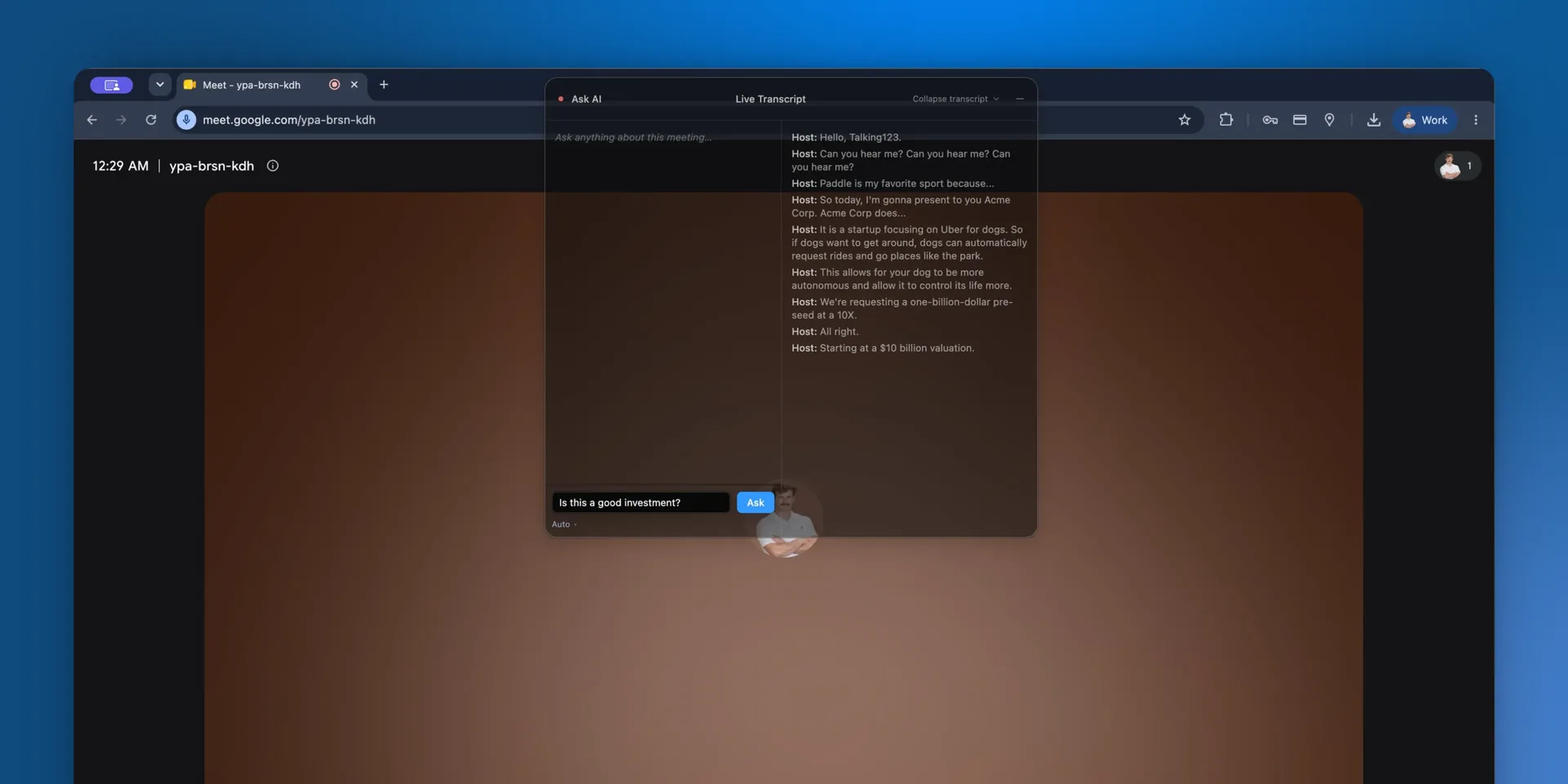
Live AI runs in the SalesEQ desktop app while a meeting is going on. It transcribes as people talk. Ask it a question and it answers from what has been said so far.
The point is the second half. Everything else in SalesEQ works on a meeting once it has finished. Live AI works on the meeting you are still in.
Turn it on
Live AI is off until you switch it on. Open the SalesEQ desktop app, go to Settings, and turn on Show Live AI in meetings under Live AI.
Reading along
Start a recording and the Live AI window opens over your meeting. It has two halves: Ask AI on the left, and Live Transcript on the right, filling in as people talk.
Use the transcript to catch a number, a name, or a job title you missed, without interrupting the person speaking to ask again.
Collapse transcript narrows the window to the asking side. Minimize puts it away entirely.
Asking during the meeting
Type into the box on the Ask AI side and select Ask. Live AI answers from the transcript so far:
What number did they say for headcount?
What have they asked for that I have not answered?
What did they say about timing?
This is what makes it more than a transcript window. Reading back means finding the line yourself. Asking means getting the answer while the conversation is still live.
Live AI only knows the meeting in progress. For questions across meetings, use Search or a connected assistant afterward.
What you get afterward
Live AI is a fast draft, produced while the meeting is still running. The transcript SalesEQ processes after the meeting ends is the accurate one.
Expect the finished transcript to differ. It carries speaker names, corrected wording, and timestamps that line up with the recording. Read Live AI in the moment, and the processed version afterward.
Next
- Viewing a meeting covers the finished transcript.
- Ask AI covers asking questions once a meeting is done.
- What gets captured covers everything a recording produces.