Device management (MDM)
Limit the desktop app on company computers to your organization's accounts.
If your company manages its computers with a device management (MDM) tool such as Jamf, Kandji, Intune, or Rippling, you can lock the SalesEQ desktop app to your organization. On a managed computer, the desktop app only accepts accounts that belong to the organizations you allow. Nobody can record a work meeting into a personal or outside account.
This page is for IT administrators. Members on a managed computer do not need to do anything.
Before you start
- Admin access to your MDM tool.
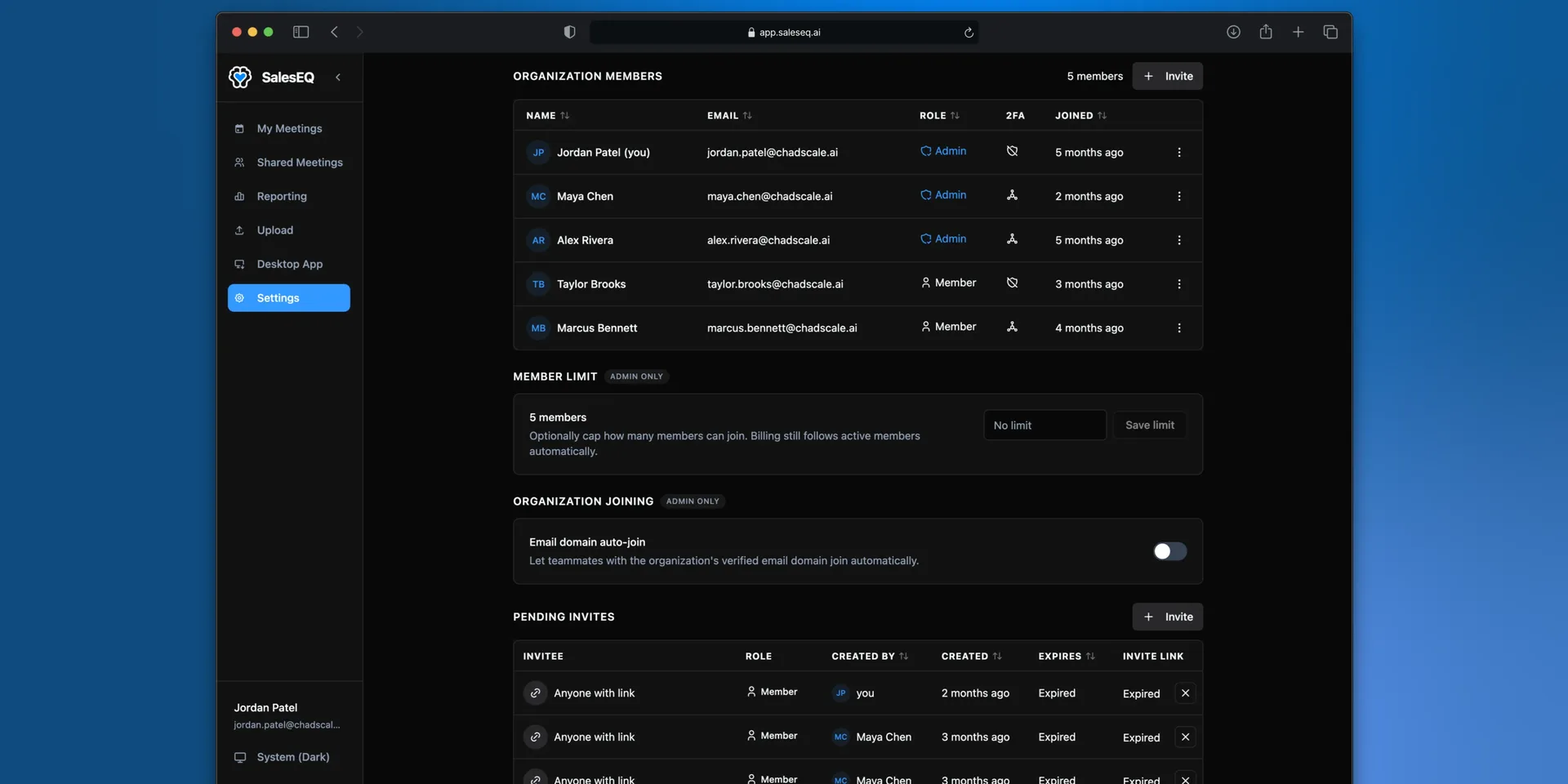
- Your SalesEQ Organization ID. In the web app, open Settings, then General under Organization, and select the copy button next to Organization ID. Every member can see it, not only admins.
Set it up on macOS
Create a custom settings profile
In your MDM tool, create a new configuration profile with a custom settings payload. Jamf calls this Application & Custom Settings, Kandji calls it a Custom Profile, and Intune calls it a Preference file.
Enter the setting
Use these values:
| Field | Value |
|---|---|
| Preference domain | com.electron.saleseq |
| Key | AllowedOrgIds |
| Type | Array of strings |
| Value | One entry per Organization ID you allow |
Most companies allow one organization. Add more entries if your company runs several SalesEQ organizations.
Assign it to your computers
Scope the profile to the computers or groups that should be locked, then save. Your MDM tool installs it in the background, and the profile appears in System Settings under Privacy & Security, then Profiles.
Set it up on Windows
Set this registry value with Group Policy, Intune, or another tool that can write to the registry:
| Field | Value |
|---|---|
| Key | HKEY_LOCAL_MACHINE\SOFTWARE\Policies\SalesEQ\Desktop |
| Name | AllowedOrgIds |
| Type | REG_SZ |
| Data | Your Organization ID. Separate several with commas. |
What members see
The desktop app checks the setting when someone signs in, switches accounts, starts or finishes a recording, and periodically in the background.
- An account from another organization can't sign in. The desktop app shows Use your work account and explains that the computer is managed by your organization.
- A signed-in account from another organization is signed out the next time the desktop app checks. If that account is recording, the recording finishes first.
- Accounts from your organization work as usual. Members who belong to more than one allowed organization can still switch between them.
A typo blocks everyone
If the value contains anything that is not a valid Organization ID, the desktop app blocks every account and shows Device policy misconfigured. This is deliberate: a broken setting should never let outside accounts in. Fix the value and the desktop app recovers on its next check.
Verify it worked
On a managed computer, try to sign in to the desktop app with an account outside your organization. The desktop app should refuse it with Use your work account. Then sign in with a work account and confirm it opens normally.
Next
- Members and roles covers who can administer the organization.
- Desktop app covers installing and using the desktop app.