Connect custom MCP
Add SalesEQ to any MCP client that supports remote servers.
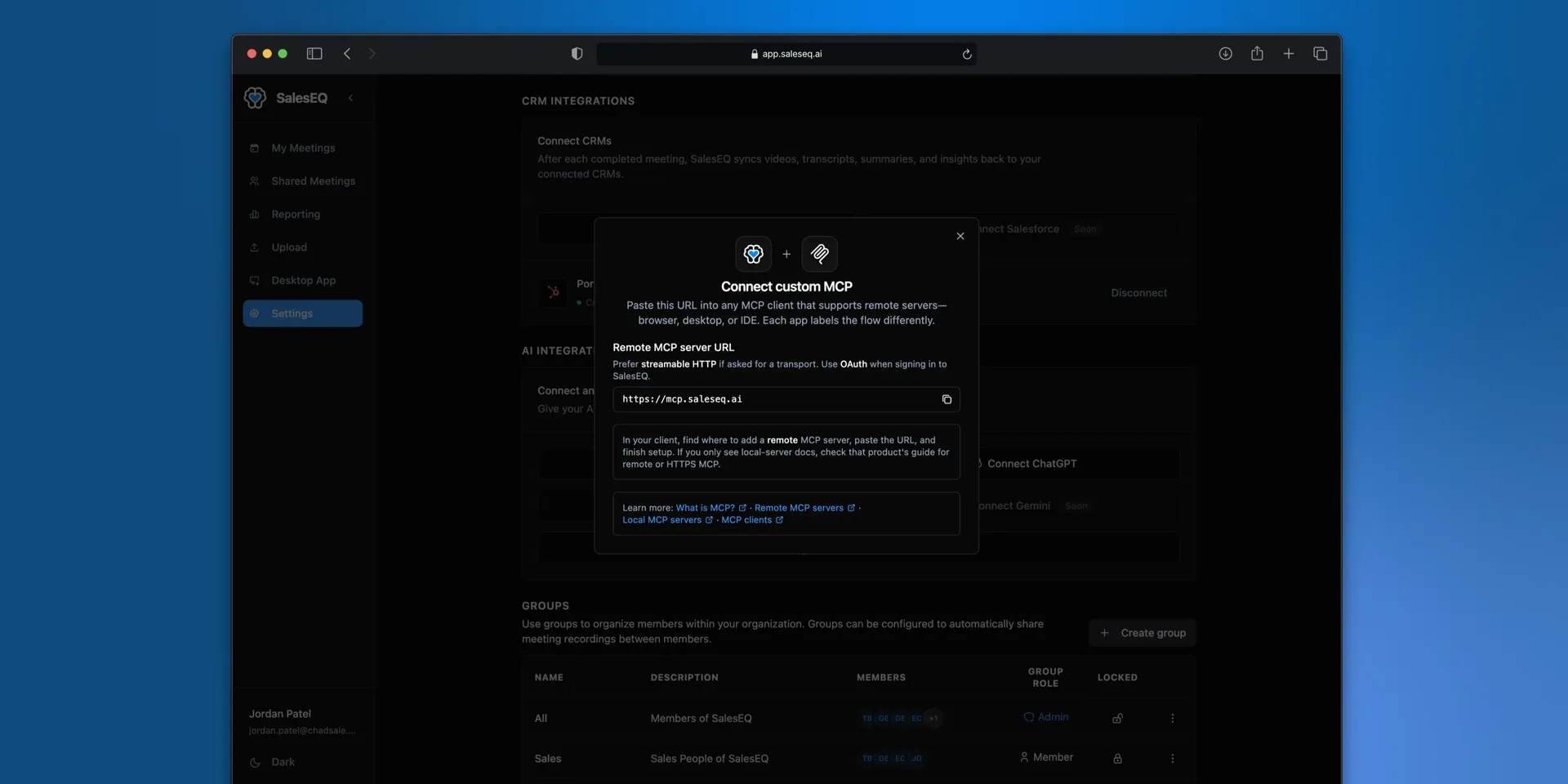
Claude and ChatGPT have their own pages. Any other client that supports remote MCP servers also reaches SalesEQ, whether it runs in a browser, on your desktop, or inside an IDE.
Each client labels this differently, so the steps below describe what to look for rather than what to select.
Before you start
- A SalesEQ account you can sign in to at
https://app.saleseq.ai - A few meetings recorded, uploaded, or imported already, so your client has something to work with
- A client that supports remote MCP servers
Steps
Find where your client adds a remote MCP server
The wording varies: connectors, integrations, MCP servers, tools. If the only documentation you find covers local servers, check that product's guide for remote or HTTPS MCP.
Paste the server URL
https://mcp.saleseq.aiChoose streamable HTTP if the client asks which transport to use. No client ID or secret is needed.
Sign in to SalesEQ
Choose OAuth if the client asks how to authenticate, then sign in with the account whose meetings you want the client to reach. The connector exposes that account's access and nothing more.
Verify it worked
Ask your client a question that needs your data:
List my three most recent meetings in SalesEQ and summarize them.A correct setup returns real meeting titles from your account.
If the client fails to connect, or connects but returns no meetings, read Troubleshooting.