Connect Claude
Connect SalesEQ from Claude's Connectors Directory.
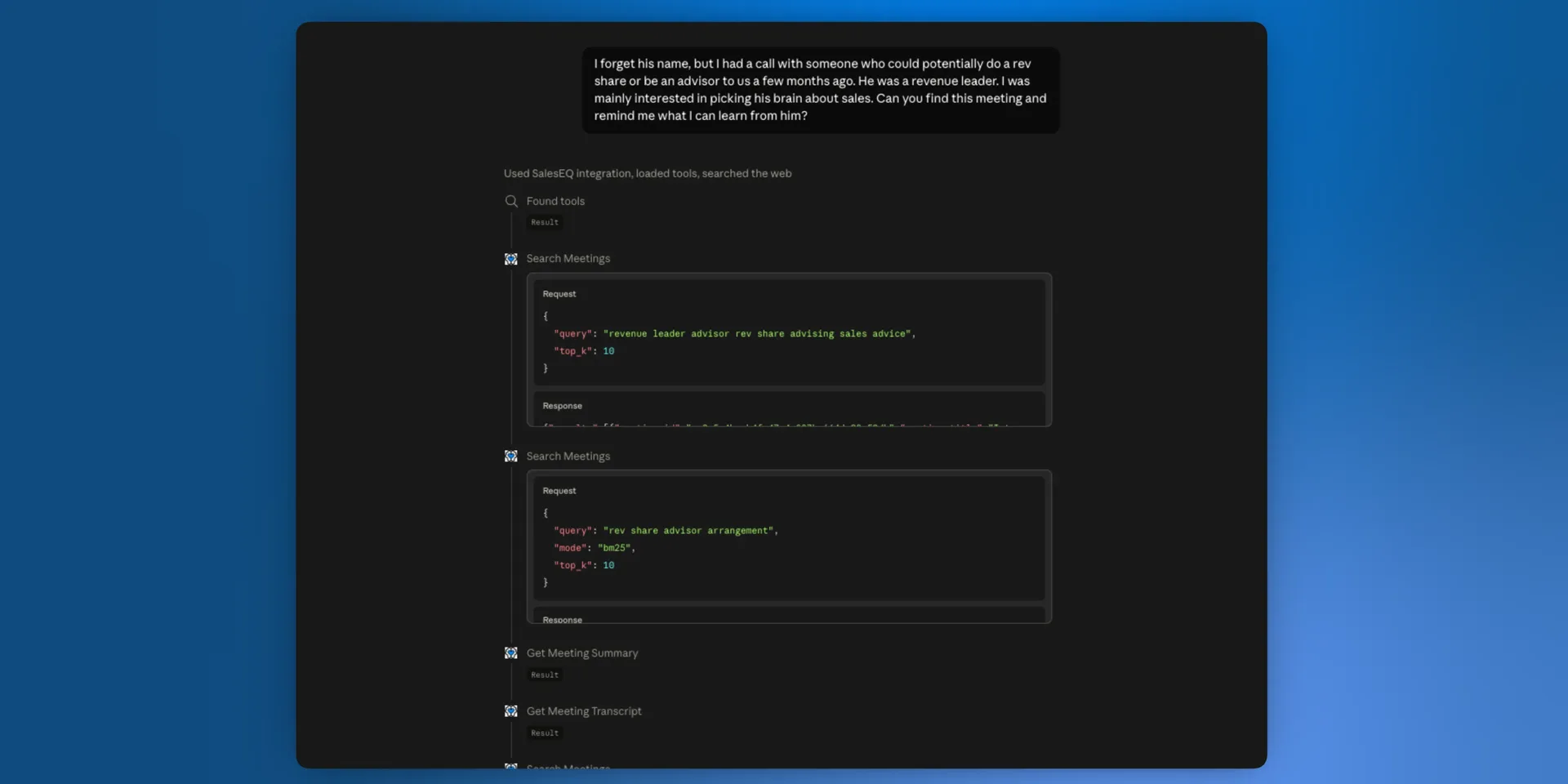
SalesEQ is available in Claude's Connectors Directory, so connecting takes a few clicks with nothing to configure.
Before you start
- A SalesEQ account you can sign in to at
https://app.saleseq.ai - A few meetings recorded, uploaded, or imported already, so Claude has something to work with
- Claude on web or desktop
Steps
Open the SalesEQ connector in Claude
Go to the SalesEQ Claude connector page and select Connect to Claude.
See Connect for your team?
An Owner or Primary Owner must add SalesEQ to a Team or Enterprise organization before members connect their own accounts.
Sign in to SalesEQ
Sign in with the SalesEQ account whose meetings you want Claude to reach. If you are already signed in, Claude takes you directly to authorization.
Allow access
On the SalesEQ authorization page, select Allow. Claude finishes the connection and returns you to the connector page.
Verify it worked
Confirm the connector page says Connected. Start a conversation, turn SalesEQ on from the connectors control, and test it with:
List my three most recent meetings in SalesEQ and summarize them.A correct setup returns real meeting titles from your account.
If the connector fails to add, or connects but returns no meetings, read Troubleshooting.